Streaming with Cairn
The friendliest way to go live.
Cairn is built to be broadcast. Everything you need — capture, clips, a cinematic camera, and a ready-made overlay — ships inside the game. Here's the whole setup in three minutes.
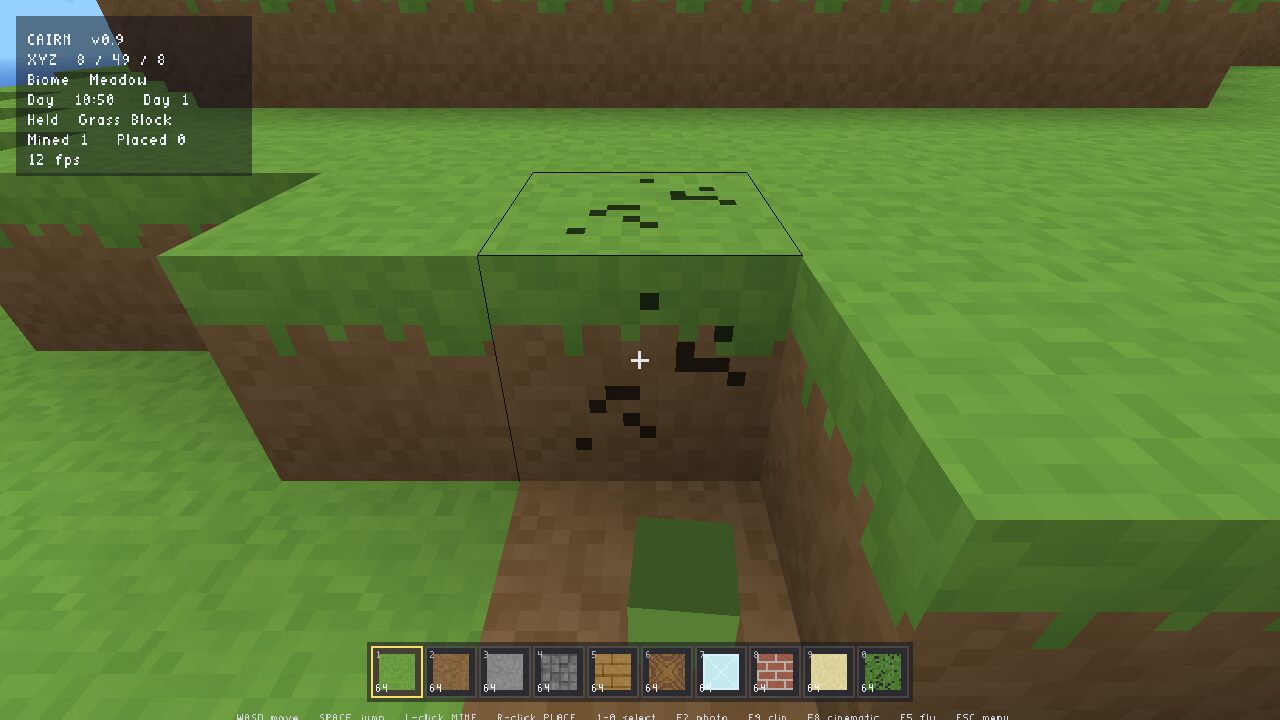
Capture, in one key each
F2 screenshot · F9 start/stop a real .mp4 clip · F8 the smooth cinematic camera. No plugins, no external recorder.
Live state, on disk
As you play, Cairn writes stream/state.json — seed, coordinates, biome, time of day, blocks mined and placed, and whether you're recording.
An overlay that reads it
The bundled overlay.html renders that state as a clean, transparent browser source. Point OBS at it and it updates itself.
Set up OBS
Three steps to a dressed stream.
- Add your game. In OBS, add a Window Capture (or Display Capture) source and point it at the Cairn window. That's your gameplay.
- Add the overlay. Add a Browser source. Tick "Local file" and choose the
overlay.htmlthat ships next to the game (or download it here). Set it to 1920×1080 with a transparent background — it already is. - Play. The overlay reads
state.jsonfrom the game folder every half-second and updates your biome, coordinates, time of day, and session stats automatically. Hit F9 and a live "RECORDING" badge appears on stream, too.
Tip: put the overlay's browser source at the same 1920×1080 canvas size and let it float bottom-left. It's designed to sit over gameplay without covering your build.
And you can keep the money
Cairn ships a plain-language creator license: record, stream, and monetize freely — ads, sponsors, memberships — no permission needed. We wrote it generous on purpose, and early. Go make something.